1
Character
Written prompt
Name visible traits, clothing and pose.
Image to inspect
Check whether those traits remain recognizable.
Text to anime
Describe the character, setting and mood you want to explore. Aianime gives you a starting point for writing a focused prompt; the linked tool determines what you can generate and how the result looks.
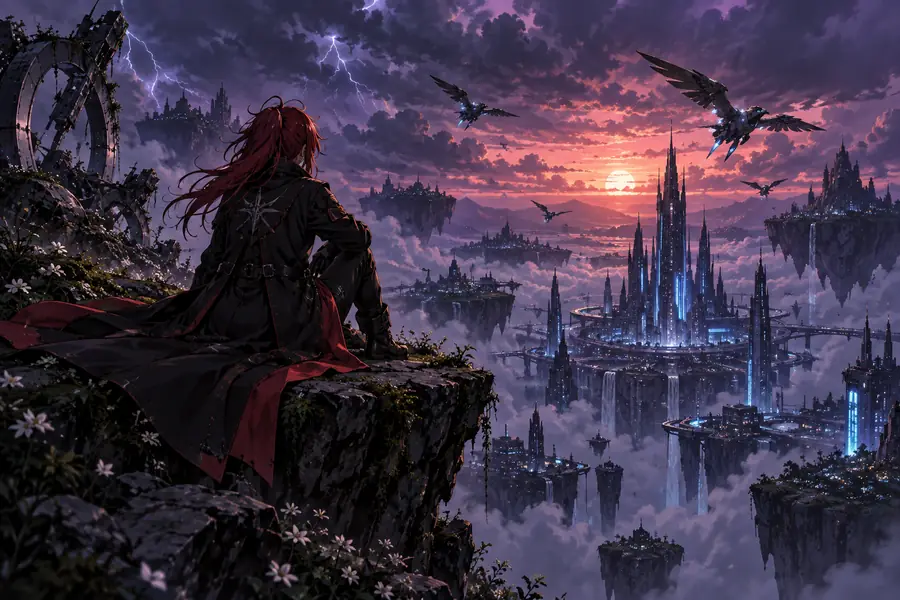
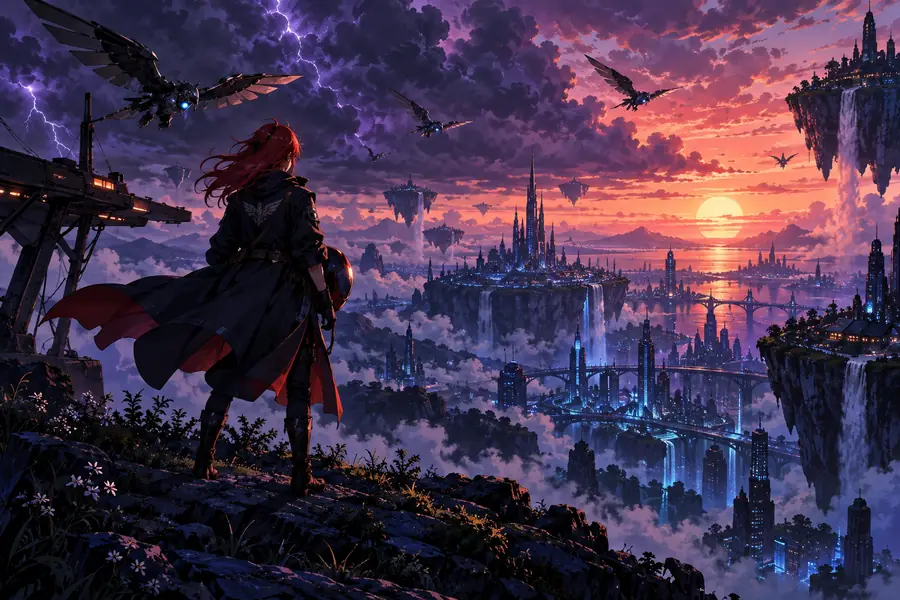
A short prompt leaves composition open. A more specific prompt can guide framing and setting, though it cannot guarantee a particular image.
These are illustrative framing references, not verified outputs from the same prompt. Drag to compare how much a setting choice changes the scene.
An ai anime art generator from text interprets your words rather than transferring every detail literally. Keep the details that matter most close to the start of the prompt.
Written prompt
Name visible traits, clothing and pose.
Image to inspect
Check whether those traits remain recognizable.
Written prompt
Specify a place and one or two defining objects.
Image to inspect
Look for the place before judging background details.
Written prompt
Request a close portrait or a wide scene.
Image to inspect
Check subject size and camera distance.
Written prompt
Describe a source, such as sunset through a window.
Image to inspect
See whether the light supports the intended mood.
Written prompt
Use a few concrete visual cues, such as clean linework.
Image to inspect
Judge the visible treatment rather than the style label.
Written prompt
List only details essential to the concept.
Image to inspect
Inspect hands, accessories and background objects separately.
Build a prompt in layers, then use the linked tool to test it. Available controls and results depend on that tool.
Begin with a character or scene: for example, a traveler waiting at a seaside station. Give the subject one clear action instead of several competing ones.
Add framing, time of day and a small number of style cues. A wide composition and warm platform lights tell the image tool more than a long list of vague adjectives.
Compare any result with the prompt. If the setting is missing, move it earlier; if the frame is too tight, request a wider view. For a broader browser workflow, see how to use ai anime generator online at /how-to-use-ai-anime-generator-online/.
Before keeping an image, check whether its subject, setting, framing and important details match your words. An attractive result can still miss the idea you meant to express. Change one part of the prompt at a time so you can tell which revision helped.
AI image tools can interpret a written description and produce anime-style artwork. Aianime helps you plan a text-first prompt and links to a tool where you can explore the available generation options.
Start with the subject and action, then add the setting, framing and lighting. Use concrete details such as a blue coat or a wide station platform rather than stacking many broad style words.
Not necessarily. Text-to-image results may omit, reinterpret or alter details, so inspect the image against your most important instructions and revise the prompt if needed.
A text prompt describes a scene without supplying a source image. A photo-based workflow starts with an existing picture, which makes it a better starting point when that picture is central to your idea.